
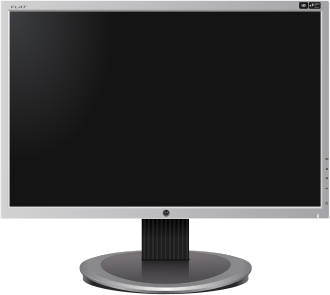
Most people buy a monitor by price, by a sale, or by a single number they heard was important — usually resolution or refresh rate. That habit either leaves real performance on the table or spends money on specs the screen will never use. The useful way to choose is to start from the job you’ll do in front of the screen, then read the spec sheet against that job. A monitor is an output device that presents information visually, and modern panels are almost all LCDs with LED backlights, a technology that overtook CRTs in the early 2000s and has dominated since (Computer monitor, Wikipedia).
Start with the job, not the spec
Ask what sits on the screen most of the day. Writing, spreadsheets, and web browsing are light duties that any modern panel handles. Photo and video editing demand color accuracy and a wide gamut. Games and fast video want high refresh rates and low response times. A single “best monitor” does not exist because those jobs pull in opposite directions — a color-accurate creative panel is usually slower than a gaming panel, and a 360 Hz esports screen is overkill for email.
Resolution: how many pixels you can actually use
Resolution is the number of distinct pixels a panel shows natively. Since 2009 the most common sold resolution for computer monitors has been 1920×1080 (1080p), shared with HDTV (Computer monitor, Wikipedia). By 2015 most major manufacturers had released 3840×2160 (4K UHD) displays, and 7680×4320 (8K) monitors began shipping. For a typical 24–27 inch desk, 1440p (2560×1440) is the sweet spot: it gives noticeably sharper text and UI than 1080p without forcing your graphics hardware to push four times the pixels of 4K. Choose 4K when the screen is 32 inches or larger, when you edit high-resolution media, or when you keep many windows open at once. Below 24 inches, 1080p still looks perfectly crisp.
Refresh rate and response time: motion, not just speed
Refresh rate is how many times per second the image can change, measured in hertz (Hz); it sets the maximum frames per second the monitor can show, and on LCDs it is limited by the panel’s response time (Refresh rate, Wikipedia). A 60 Hz panel refreshes 60 times a second, which is fine for office work. Gaming and smooth cursor motion benefit from 120 Hz, 144 Hz, or higher. Response time measures how fast a pixel shifts between shades, quoted in milliseconds (gray-to-gray); lower is better because high values produce ghosting trails behind moving objects. If you mostly read and type, refresh rate above 60 Hz is a nice-to-have, not a need. If you play competitive games, it is the single most important number after resolution.
Panel type: IPS, VA, OLED, and what each is for
The panel technology decides color, contrast, and viewing angle. IPS panels offer accurate color and wide viewing angles, which is why they dominate creative and office work. VA panels deliver deeper contrast and are common in curved and budget screens. OLED monitors combine the strengths of LCD and CRT — excellent contrast and response — but, like plasma and CRT before them, they can suffer burn-in and cost more (OLED, Wikipedia). For most buyers in 2026, an IPS panel is the safe default; step up to OLED only if you want the best contrast for dark-room movie and game viewing and can accept the price and burn-in care.
Size, aspect ratio, and curvature
Monitors are measured diagonally, and since the early 2010s the industry standard aspect ratio has been 16:9, replacing the older 4:3 (Computer monitor, Wikipedia). Ultrawide panels exceed a 2:1 ratio (21:9 or 32:9) and are built to replace a multi-monitor desk with one seamless screen — useful for timelines, spreadsheets, and code, less useful for standard video. Curved designs reduce geometric distortion on very large, close-up panels. For a normal desk, 24–27 inches at 16:9 is ergonomic; 34-inch ultrawides suit power users with the desk depth to back them off.
Ports you will actually need
A monitor is only as useful as what you can plug into it. Modern panels connect via DisplayPort, HDMI, USB-C, DVI, or VGA, with USB-C increasingly carrying video, data, and power over one cable (Computer monitor, Wikipedia). If you run a laptop, a USB-C or Thunderbolt input that charges the machine while displaying video removes a tangle of cables. Check the port version: HDMI 2.1 and DisplayPort 2.1 matter if you want high refresh rates at 4K. Also confirm the stand is height-adjustable, or that the panel uses the VESA mounting standard so you can put it on an arm (VESA Mount, Wikipedia).
HDR and brightness, briefly
High dynamic range (HDR) widens the gap between the brightest and darkest parts of an image and is common on higher-end LCDs. It only pays off on a panel bright enough and with enough local dimming to show it; a cheap “HDR-compatible” label on a dim screen is not worth paying for. Brightness is measured in nits (candelas per square meter), and for HDR you generally want a panel rated well above 400 nits with local dimming rather than a static brightness number alone.
Matching a monitor to three common jobs
For an office or study setup, pick a 24–27 inch 1440p IPS panel at 60–75 Hz with a USB-C input and a height-adjustable stand. For gaming, prioritize 1440p or 4K at 144 Hz or higher with a low response time and adaptive sync; panel type is secondary to motion. For photo and video work, choose a 4K IPS or OLED with wide gamut coverage (look for Adobe RGB or DCI-P3 figures) and factory calibration. The right monitor is the one whose weakest spec is still good enough for your worst-case task — everything above that is either insurance or indulgence.
Editorial note: Citation cleanup: we trimmed duplicate citation links that repeated the same source after multiple paragraphs. Every fact and quote is unchanged; the source remains cited where each claim appears.