

Passwords are the weakest link in most account breaches, and they have been for two decades: reused across sites, phished in convincing look-alike pages, leaked in the constant drumbeat of corporate breaches. Passkeys are the industry’s answer, and in 2026 they have moved from experimental to default-on across Google, Apple, and Microsoft accounts. They are built on the FIDO/WebAuthn standard and replace a shared secret with a cryptographic key pair that lives on your device. This playbook covers what they are, how to switch your own accounts over, and the places where the pitch still outruns reality.
What a passkey actually is
A passkey is not a longer or randomly generated password. At registration, your device generates a unique public-private key pair for that account. The public key is uploaded to the server, where it is not secret. The private key stays on your device and is what actually proves who you are — and it never travels over the network Apple: About the security of passkeys. Authentication happens when your device signs a challenge using that private key, unlocked by your fingerprint, face, or device PIN.
Because there is no shared secret to steal, a passkey cannot be reused on another site, cannot be read off a phishing page, and cannot be handed to an attacker who simply asks for it. The credential is also bound to the specific origin that created it, so a passkey for yourbank.com will not authenticate against yourbank-login.com no matter how convincing the fake page looks passkeys.dev, developer resources.
Why passkeys beat passwords and one-time codes
The comparison is not close. Passwords get reused and leaked; one-time codes (SMS or authenticator apps) can still be intercepted through SIM swaps or real-time phishing proxies that forward the code to the attacker. Passkeys close both gaps. Google’s own support documentation notes that passkeys “can’t be shared, copied, written down, or accidentally given to someone else,” which is precisely why they resist phishing Google: Sign in with a passkey.
One practical detail worth knowing: when you use a passkey, your biometric data — the fingerprint or face scan — stays on the device and is never transmitted to the service. The service only ever sees the cryptographic signature, not your face or fingerprint. On Google accounts with two-step verification or Advanced Protection, a passkey also satisfies the device-ownership check, so it can replace the second step entirely.
Step 1: Turn on passkeys for your Google Account
Open your Google Account, go to Security, and find the Passkeys option. Add a passkey using the fingerprint reader, face scan, or screen lock (PIN) on the device you are using. From that point, signing in to your Google Account on a new device can be done with that passkey instead of a password plus code. Google states the biometric unlock remains local and is never shared with Google Google: Sign in with a passkey.
If you rely on Google as your primary identity, this is the single highest-value change in this guide. Do it first.
Step 2: Set up passkeys on iPhone and Mac
On Apple platforms, passkeys are built into iCloud Keychain and appear automatically when a site or app supports them. When you create an account or add a sign-in, choose to save a passkey and confirm with Face ID or Touch ID. The passkey then syncs across your Apple devices through iCloud Keychain, which Apple describes as end-to-end encrypted Apple: About the security of passkeys.
Apple also notes passkeys work across non-Apple devices that are in physical proximity — so a passkey created in your Apple account can be used to sign in on, say, a Windows machine via a nearby-device handshake rather than being locked inside one ecosystem.
Step 3: Windows, Android, and crossing ecosystems
On Windows, passkeys are tied to Windows Hello and your Microsoft account; on Android, to your Google account and device unlock. The cross-platform story is the part that has improved most in the last year: a passkey stored with one provider can typically be used to authenticate on a different platform’s browser through a local proximity prompt or a scanned code. The WebAuthn standard that underpins all of this is maintained by the W3C, which keeps the behavior consistent across browsers and operating systems W3C WebAuthn Level 3.
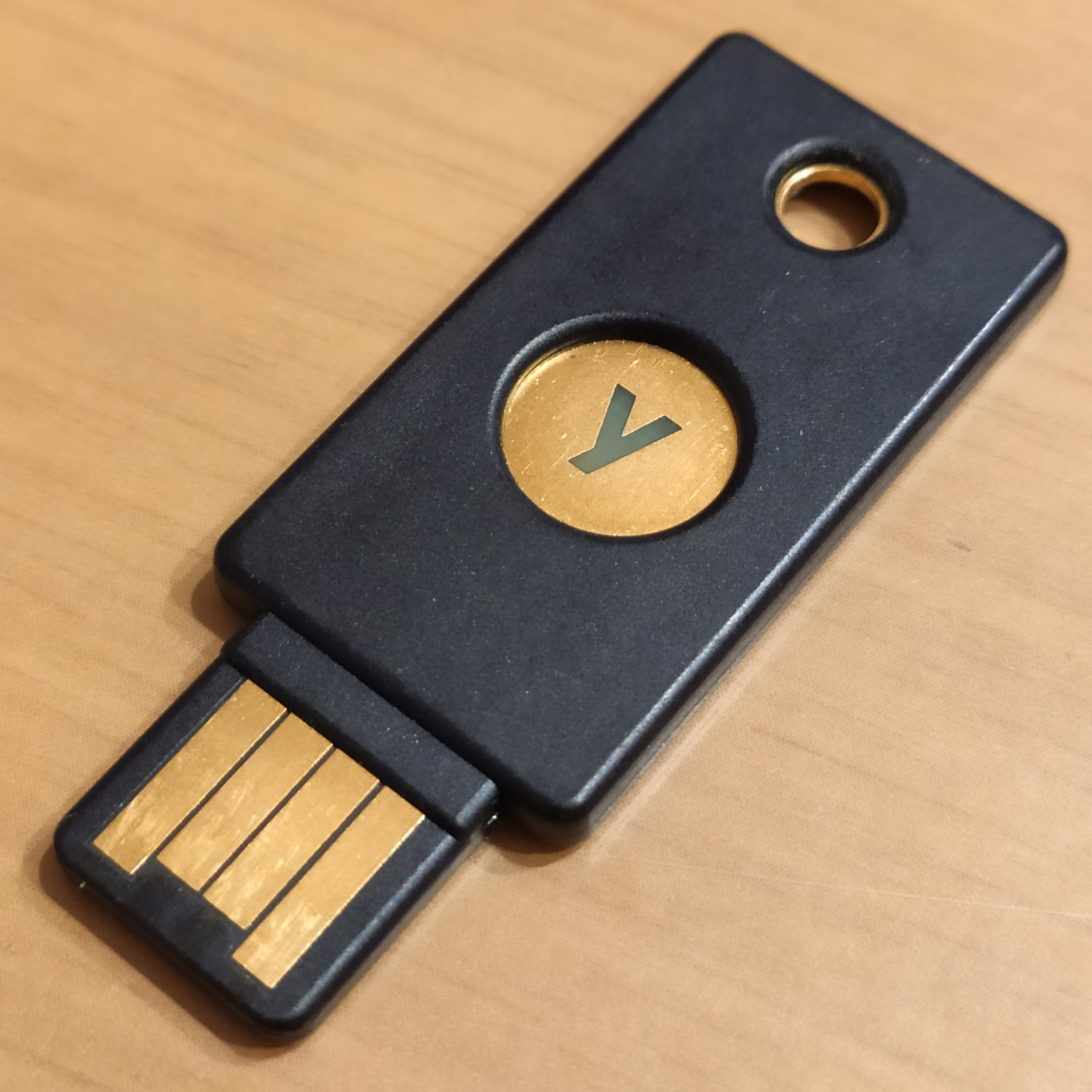
Image: Aldolat via Wikimedia Commons (CC BY-SA 4.0)
Recovery and the edge cases
The main fear with passwordless login is being locked out. There are two layers of protection. First, synced passkeys travel with your account backup — lose your phone and a new iPhone or Android device restores them from iCloud Keychain or your Google backup. Second, for high-value accounts, keep a hardware security key (a physical key like the one pictured above) registered as a fallback, so a lost phone does not mean a lost identity.
Shared or family accounts are the awkward case. Passkeys are individual by design, so a jointly accessed account needs either a shared passwordless method or a hardware key kept in a known place. For most households, registering one hardware key as a shared backup solves it.
Where passkeys still fall short
The honest limitations matter before you declare password bankruptcy. Not every service supports passkeys yet, so you will keep passwords for the long tail of accounts. More subtly, because synced passkeys live inside one provider’s backup, your credential store becomes tied to that account’s health — if you lose access to the iCloud or Google account that holds them, you can lose the passkeys too, which is why a hardware key or printed backup codes remain sensible insurance.
There is also a dilution risk: as long as a site still accepts your old password as a fallback, an attacker who has it can ignore the passkey entirely. The strongest posture is to remove the password fallback where the service allows it. Enterprise rollouts vary widely, so check your organization’s identity provider before assuming passkeys are enforced.
Start today
You do not need to convert every account in one sitting. Pick your primary email or Google identity, enable its passkey, and register one hardware key as a fallback. Then, whenever a site offers “sign in with a passkey,” take it. Within a few weeks the password-plus-code ritual becomes the exception rather than the rule — and the accounts that matter most stop being the ones most likely to be phished.