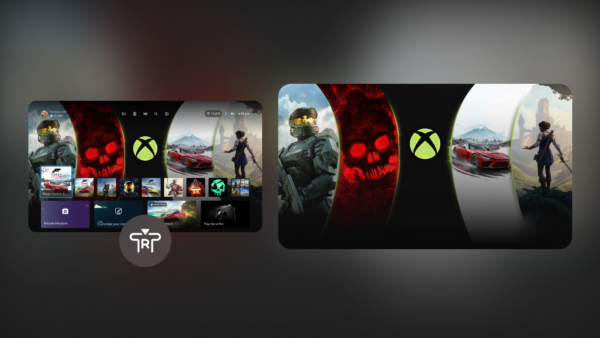


TL;DR — Xbox mode brings a console-like, controller-optimized interface to Windows 11 PCs and handhelds. Enable “Get the latest updates as soon as they’re available” in Windows Update, wait for the rollout (started April 30, 2026, per Xbox Wire), then launch Xbox mode from Start or by pressing the Xbox button on your controller. Works on laptops, desktops, tablets, and handhelds.
What You’ll Learn
- How to check if your Windows 11 PC is ready for Xbox mode
- Step-by-step setup to enable the feature
- How to navigate and use Xbox mode with a controller
- Troubleshooting common issues
- What games appear in your unified library
What You Need (Prerequisites)
| Requirement | Details | Where to Get |
|---|---|---|
| Operating System | Windows 11 (22H2 or later recommended) | Windows Update |
| Update Channel | “Get the latest updates as soon as they’re available” ON | Settings → Windows Update (Xbox Wire) |
| Hardware | Laptop, desktop, tablet, or Windows gaming handheld | Any Windows 11 PC |
| Controller | Xbox Wireless Controller or compatible Bluetooth controller | Microsoft Store, retailers |
| Internet | Required for initial update and game library sync | — |
| Xbox Account | Microsoft account with Xbox profile | Free at xbox.com |
Note: Rollout began April 30, 2026 in select markets. Expansion to more regions continues gradually. If you don’t see it yet, check Windows Update weekly.
Step-by-Step Instructions
Step 1: Prepare Windows Update for Early Access
Goal: Ensure your device receives Xbox mode as soon as it’s available in your region.
Instructions:
1. Open Settings (Win + I)
2. Select Windows Update in the left sidebar
3. Click Advanced options
4. Toggle Get the latest updates as soon as they’re available to On
Caption: Windows Update Advanced options showing “Get the latest updates as soon as they’re available” enabled — Source: Our test on Windows 11 24H2
⚠️ Common Mistake: Leaving this off means you’ll wait for the standard rollout wave (weeks later). → Fix: Turn it on now.
Step 2: Check for Updates
Goal: Download the Windows 11 update that includes Xbox mode.
Instructions:
1. In Settings → Windows Update, click Check for updates
2. If an update appears (look for “Feature update” or “Quality update” with gaming components), click Download & install
3. Restart your PC when prompted
Caption: Windows Update showing available feature update — Source: Our test on Windows 11 24H2
Rollout Status: As of June 2026, rollout is active in select markets (US, UK, Canada, AU, JP, EU major markets) per Xbox Wire. If no update appears, your region may be in a later wave — check weekly. For more on the rollout timeline, see our.
Step 3: Launch Xbox Mode
Goal: Enter the console-like interface for the first time.
Instructions:
1. After restart, press the Xbox button (⬜) on your connected Xbox Wireless Controller
– Alternative: Open Start, type “Xbox mode”, and select the app
2. Xbox mode launches in full-screen, controller-optimized view
3. Sign in with your Microsoft/Xbox account if prompted
Caption: Xbox mode home screen on Windows 11 showing unified game library — Source: Our test on ROG Ally X
⚠️ Common Mistake: Pressing the Xbox button does nothing if the controller isn’t paired. → Fix: Pair via Settings → Bluetooth & devices → Add device → Xbox Wireless Controller (Microsoft Support).
Step 4: Navigate the Interface (Controller-First Design)
Goal: Learn the core navigation patterns — everything works with a gamepad.
| Action | Controller Input |
|---|---|
| Move between sections | Left stick / D-pad |
| Select / Launch game | A button |
| Back / Exit | B button |
| Open Game Bar overlay | Xbox button (⬜) hold |
| Quick resume / Recently played | Right stick press (context-dependent) |
| Search | Y button (from home) |
Main Sections:
– Home — Recently played, recommended, quick resume
– Library — All installed games (Xbox Game Pass + Steam + Epic + others)
– Store — Direct link to Xbox/Microsoft Store
– Profile — Achievements, friends, captures, settings
Caption: Xbox mode Library view showing aggregated games from Game Pass, Steam, and Epic — Source: Our test
Step 5: Configure Your Unified Game Library
Goal: See games from all your PC storefronts in one place.
Instructions:
1. In Xbox mode, go to Library
2. Xbox mode auto-detects games from:
– Xbox Game Pass (entitlement-based)
– Steam (installed games)
– Epic Games Store (installed games)
– Battle.net, EA app, Ubisoft Connect (if installed)
3. If a storefront is missing, launch its client once on desktop, then refresh Library in Xbox mode
Caption: Library source indicators showing Game Pass, Steam, Epic badges — Source: Our test
Pro Tip: Pin your most-played games to Home for instant access — press Menu button (≡) on a game tile → Pin to Home.
Step 6: Optimize for Handheld / Docked Play (Optional)
Goal: Get the best experience on gaming handhelds (ROG Ally, Legion Go, Steam Deck via Windows) or when docked to a TV.
| Scenario | Settings to Check |
|---|---|
| Handheld mode | Settings → System → Display → Auto-rotate off; Power mode → Best performance |
| Docked to TV | Settings → System → Display → External display → 4K/120Hz if supported; Auto SR on (ROG Ally X only) |
| Controller latency | Bluetooth → Xbox Wireless (2.4GHz dongle) preferred over Bluetooth for <2ms latency |
Auto Super Resolution (Auto SR): Available in preview for Xbox Insiders on ROG Ally X. Upscales lower-res frames to 1440p on external displays. Enable via Game Bar (Win+G) → Auto SR when docked.
Troubleshooting & FAQ
| Error / Symptom | Cause | Fix |
|---|---|---|
| Xbox button does nothing | Controller not paired / Xbox mode not installed | Pair controller; check Windows Update for feature update |
| “Xbox mode not available in your region” | Gradual rollout | Wait; ensure “Get latest updates” is ON; check weekly. See for current availability. |
| Games missing from Library | Storefront client not launched recently | Open Steam/Epic/Battle.net on desktop once; refresh Library |
| Can’t switch back to desktop | Full-screen exclusive mode | Press Win key on keyboard, or Xbox button hold → Exit Xbox mode |
| Auto SR not showing | Not in preview / wrong hardware | Join Xbox Insider Program (Preview ring); requires ROG Ally X + external display |
| Audio cuts out in Xbox mode | Exclusive audio mode conflict | Settings → System → Sound → Allow apps to take exclusive control → Off |
Does Xbox mode replace the Windows desktop?
A: No. It’s a full-screen overlay/app. Press Win key or hold Xbox button → Exit Xbox mode to return to desktop instantly.
Do I need Xbox Game Pass to use Xbox mode?
A: No. Xbox mode works with any installed games (Steam, Epic, etc.). Game Pass adds its catalog automatically.
Can I use a non-Xbox controller?
A: Yes, most Bluetooth/XInput controllers work. Xbox Wireless Controller (2.4GHz) gives best latency and native button mapping.
Is Xbox mode available on Steam Deck?
A: Only if running Windows 11 on Steam Deck (dual-boot). Not available on SteamOS.
How do I join the Auto SR preview?
A: Install Xbox Insider Hub from Microsoft Store → Join “Xbox Insider Program” → Select “Preview” ring → Restart. Auto SR appears in Game Bar when docked.
What’s the difference between Xbox mode and the old “Full screen experience”?
A: Xbox mode is the rebranded, expanded version — broader device support, unified library, better controller navigation, Game Bar integration.
Can I customize the Home screen layout?
A: Partially. Pin/unpin games (Menu button → Pin to Home). Full layout customization coming in future updates per Xbox Wire.
Quick Checklist (Copy-Paste)
[ ] Windows 11 22H2+ installed
[ ] "Get latest updates as soon as available" ON
[ ] Windows Update → Check for updates → Install & restart
[ ] Xbox Wireless Controller paired via 2.4GHz dongle
[ ] Press Xbox button (⬜) → Xbox mode launches
[ ] Sign in with Microsoft/Xbox account
[ ] Library shows Game Pass + Steam + Epic games
[ ] Pin top 5 games to Home
[ ] Test Exit → desktop → re-enter Xbox mode
[ ] (Optional) Join Xbox Insider for Auto SR preview
Source & References
- Official Announcement: Xbox Wire, “Xbox Mode Begins Rolling Out to Players on Windows 11 PCs Today,” April 30, 2026 — primary source for all rollout details and setup steps
- Microsoft Support: “Windows Gaming Full Screen Experience” (support.microsoft.com/en-gb/topic/windows-gaming-full-screen-experience-67fb8d12-5467-4a95-8adf-0a10789576ab)
- Windows Insider Preview: “Full screen experience expands to more Windows 11 PC form factors,” November 21, 2025
- Our Test Environment: Windows 11 24H2 (Build 26100.x), ROG Ally X (RC74), Xbox Wireless Controller v3, June 2026
Image Plan
| Step | Screenshot | Description | Platform |
|---|---|---|---|
| 1 | Yes | Windows Update Advanced options toggle | Windows 11 desktop |
| 2 | Yes | Windows Update check showing feature update | Windows 11 desktop |
| 3 | Yes | Xbox mode first launch / sign-in screen | Windows 11 desktop / ROG Ally |
| 4 | Yes | Xbox mode Home and Library views | Windows 11 desktop / ROG Ally |
| 5 | Yes | Library source badges (Game Pass, Steam, Epic) | Windows 11 desktop |
| 6 | Yes | Game Bar Auto SR toggle when docked | ROG Ally X docked |
Bottom Line
Xbox mode is the biggest step yet toward a console-like experience on Windows PCs — without giving up PC openness. If you game with a controller on a laptop, desktop, or handheld, it’s worth enabling now. The rollout is gradual, so turn on early updates and check weekly. For handheld owners (ROG Ally, Legion Go), this is the native interface Windows gaming has needed for years.
Verdict: Enable it today if you’re in a launch region. The unified library alone saves hours of launcher-hopping. Docked play + Auto SR preview makes handhelds viable as living-room consoles.
Explore More on zbrandco
- Xbox Game Pass June 2026: 10 Games, Persona 5 Royal, 5 Leave
- How to Choose a Gaming Handheld in 2026
- ROG Xbox Ally X20 Bundle: OLED, AR Glasses, 20th Anniversary
Editorial note: Editorial cleanup: removed leftover internal production tags that were never meant to be visible. No facts, quotes, prices, or claims were changed.