

Steam Families is how you share one game library across your household and lock down a kid’s account — all from a single Steam settings panel. Rolled out in 2024, it replaced both Family Sharing and Family View. Here’s how to create a family, invite up to five members, share your games, and set parental controls, based on Valve’s official Steam Families User Guide & FAQ.
How To Set Up Steam Families 2026: What you need before you start
- A Steam account in good standing (no active VAC ban that would revoke family privileges).
- The people you invite should be part of your household — Valve expects close family sharing one home, and slots carry a one-year cooldown if someone leaves.
- The Steam client, the mobile app, or just a browser — all three manage a family.
- About five minutes. Nothing to install; it’s pure account settings.
A family holds up to 6 members. Ownership of every game stays with the person who bought it; sharing only makes the library visible to everyone else in the family.
Step 1: Create the family
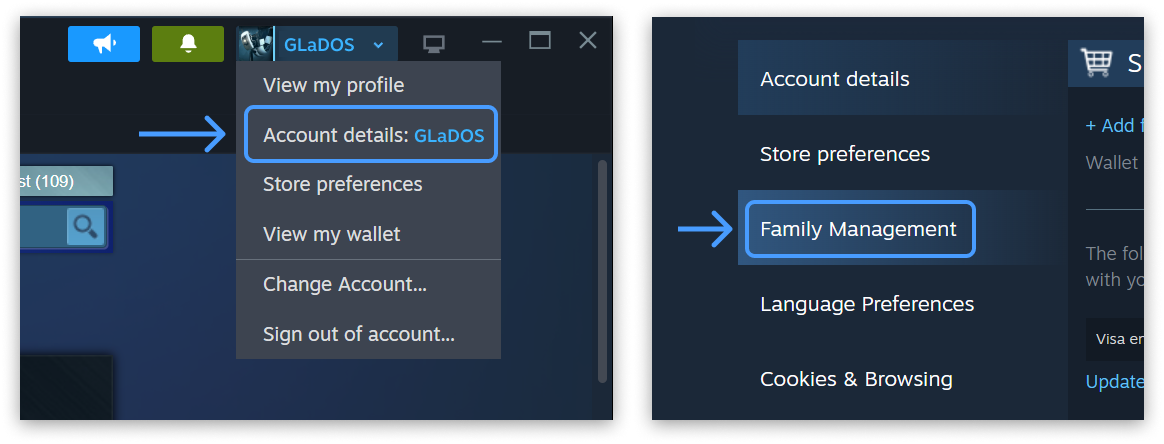
- Open your Account Details page on the Steam store (Profile → Account details).
- Click the Family Management section.
- Hit Create a Family and name it — you can rename it later.
That’s the entire setup. You’re now the first adult in a one-person family, and from here everything else is invites and settings.
Step 2: Invite the rest of the household
- In Family Management, click Invite a Member.
- Search for each person by Steam nickname or email.
- Pick their role: Adult (can manage invites and restrictions) or Child (subject to parental controls, can’t manage the family).
Invited members get a notification and have to accept. Adults can leave whenever they want, but if they do, they can’t join or create a new family for one year — so only invite people you actually live with. The slots themselves also sit on a one-year cooldown after someone vacates them, which is why Valve nudges you toward genuine household members rather than a group of online friends.
Step 3: Start sharing games
Once everyone’s in, a new Family Library appears in each member’s games list. Anyone can play a shared game as long as it isn’t already being played by someone else who owns that exact copy.
The rule that trips people up: sharing is per-copy, not per-game. Here’s the example Valve uses in its own guide — say you’re in a family of four, you own one copy of Portal 2 and one copy of Half-Life. At any moment one member can play Portal 2 while another plays Half-Life.
But if two people want Portal 2 at the same time, someone has to buy a second copy. After that purchase there are two owned copies across the family, and any two members can play it together. Games with VAC anti-cheat or that a publisher has flagged as unshareable simply won’t show up in the family library.
One more thing worth knowing: if a family member cheats or commits fraud while playing your shared game, your family privileges can be revoked and your account risks a VAC ban. Invite trusted people only, and never share your password.
Step 4: Turn on parental controls for a child
An adult locks down a child account from the same Family Management screen:
- Expand the child’s entry under Manage.
- Toggle Enable Parental Controls.
- Set game-access permissions, Steam Store / community / chat restrictions, and playtime limits.
You also get playtime reports and can approve requests for extra time or for a purchase. Children can send a shopping-cart request to an adult, who pays and approves from the mobile app or email — the game lands straight in the child’s account. Save games, achievements, and workshop items stay tied to the original account and don’t transfer to a newly created child account, so don’t expect a clean slate to inherit old progress.
If a child ever gets locked out, an adult who’s been in the family at least 30 days can run the Recover Account wizard to reset their credentials.
Step 5: Recover or leave cleanly
- Leaving: Adults leave anytime (with the one-year rejoin cooldown noted above). Children can only be removed by an adult or Steam Support.
- Rejoining: You can always rejoin the last family you were in without waiting, as long as it’s under 6 members.
- Recovering a child: Use the Recover Account button after the 30-day mark.
Troubleshooting
“I can’t join the family.” Usually one of three reasons: your account activity doesn’t look like the same household, you’re still on cooldown from a previous family, or the family’s slots are still in cooldown. Steam tells you how much time is left on the cooldown when you try.
“A game is locked in the family library.” Someone else is playing that specific copy. Check the Steam client to see who — the game unlocks when they stop.
“My old Family Sharing setup disappeared.” It didn’t — Steam now recommends your previous share partners when you create a family. Set one up and invite them.
“Family View settings are gone.” They migrated into Steam Families parental controls (the PIN is removed, but the restrictions carry over). Adjust them under the child’s Manage panel.
FAQ
Can two people play the same game at once? Only if the family owns two copies. One copy = one simultaneous player, even across the family.
What happens to my saves and achievements on a shared game? They’re tied to the account playing, not the copy. A family member playing your Portal 2 keeps their own saves and achievements separate from yours.
Is there a cost to join a family? No. Steam Families is free; you only pay when someone buys a second copy to enable simultaneous play.
Can I be in more than one family? No. You belong to one family at a time, and leaving triggers the one-year cooldown before you can join or start another.
Quick checklist
[ ] Open Account Details → Family Management
[ ] Create a Family and name it
[ ] Invite household members (Adult or Child)
[ ] Confirm they accepted the invite
[ ] Spot the new Family Library in your games list
[ ] For kids: enable Parental Controls + playtime limits
[ ] Verify a shared game launches for a family member
Why bother
For a household with more than one player, a family pays for each game once instead of per person — as long as you’re not all trying to play the same title at the same moment. For parents, the mix of playtime limits, purchase approval, and access restrictions means a kid gets a real account without a free-for-all.
It’s the single biggest quality-of-life change Steam made to shared gaming, and it takes longer to read this than to actually set up.
The real cost math
The savings only show up when more than one person in the house actually plays the same catalog. A two-adult household where only one of you touches story games gets little out of it. But a family of four where everyone games can collapse what would have been four separate libraries into one or two.
Take a $60 title three siblings all want: without Families that’s $180 across three accounts; with one shared copy it’s $60, and you only spend again if two of them want to play it simultaneously. Valve’s own Steam Families announcement frames the feature exactly this way — one purchase, many players, with the per-copy rule as the only catch.
The free tier of parental controls is the other win: purchase approval alone stops most surprise charges from a child account.
Bottom line: Open Account Details → Family Management, create a family, invite up to five household members as adults or children, then share your library and switch on parental controls from the same screen. Keep the per-copy sharing rule and the one-year slot cooldown in mind, and you’ll have the whole household gaming from one library in five minutes.
Source: Valve’s official Steam Families User Guide & FAQ.