
Microsoft PowerToys is a free, open-source Windows power user utility suite developed by Microsoft, designed to fill functionality gaps not present in default Windows installations. The suite is built specifically for developers, system administrators, and advanced Windows users who need customizable tools for workflow optimization. It supports all Windows 10 devices running version 1903 or later, as well as every Windows 11 release, and is distributed at no cost to end users.
What Is Microsoft PowerToys and Who Is It For?
As of June 2026, the latest stable release of the suite is version 0.81, with a download size of approximately 250MB for both 64-bit and ARM64 Windows architectures Microsoft’s official PowerToys documentation. The project is fully open-source under the MIT license, which allows unrestricted commercial and non-commercial use, modification, and distribution of the entire codebase. All official releases, source code, public issue trackers, and contribution guidelines are hosted on Microsoft’s public GitHub repository, with no registration or payment required to download or use the tools.
Core Built-In Utilities for Window and Input Management
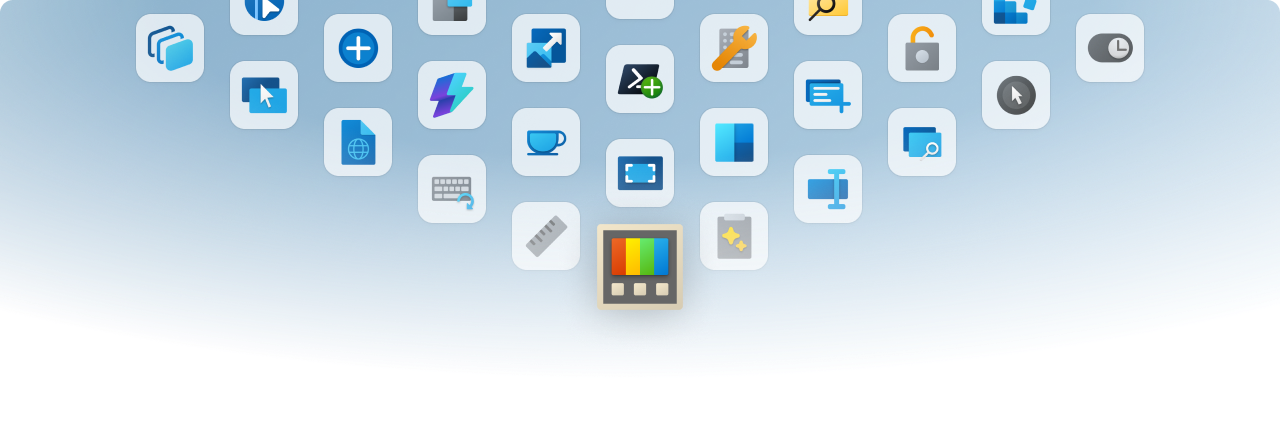
Microsoft PowerToys includes 15+ built-in utilities organized into four core categories: window and workspace management, input customization, file operations, and visual design tools. All utilities are toggleable via a centralized settings dashboard, so users can enable only the tools they need without running unnecessary background processes.
For window and workspace organization, FancyZones lets users create custom, reusable window layout zones, with support for multi-monitor setups and up to 10 configurable zones per layout.
For example, a user running a coding workflow on a dual-monitor setup can create a split-screen zone for their primary code editor on one display, and a narrow sidebar zone for terminal windows on the secondary display.
The Grab and Move utility lets users reposition windows without targeting the narrow title bar by holding the Win key while dragging any part of the window. Always On Top pins active windows above all other open applications via a default keyboard shortcut of Win+Ctrl+T.
Input customization tools cover keyboard and text workflow needs. Keyboard Manager lets users remap keys, keyboard shortcuts, and text snippets up to 1000 characters long to custom inputs, eliminating the need for third-party macro tools for simple key remaps. Quick Accent simplifies accented character input via a configurable key press, supporting over 100 accented character sets for 30+ languages including Spanish, French, and German, with a default trigger of holding a base key for 300ms before displaying the accent menu.
File operation utilities streamline bulk and context-menu tasks directly in File Explorer. PowerRename supports bulk search-and-replace for file names for up to 10,000 files in a single operation, including regular expression support for complex pattern matching and a full undo function for the entire batch rename.
For example, a user can replace all instances of “IMG_” with “Vacation2026_” across 10,000 vacation photos in one step, with the option to undo the entire batch if a mistake is made.
Image Resizer adds a right-click context menu option to resize images to 6 preset width options (256px, 512px, 1024px, 1280px, 1920px, and custom) or custom dimensions, with support for batch resizing of multiple selected images without opening a separate photo editor.
File Locksmith lets users identify which processes are locking a selected file directly from the File Explorer context menu, displaying the locking process’s ID, memory usage, and executable path to resolve permission conflicts quickly.
Advanced Paste provides enhanced clipboard functionality for reformatting and reusing copied content across apps, supporting conversion to plain text, Markdown, JSON, or CSV formats via a configurable shortcut.
Design and measurement tools support visual and layout workflows for designers and frontend developers. Screen Ruler lets users measure on-screen element dimensions in pixels, centimeters, inches, or points, with zoom support up to 16x for pixel-perfect measurement.
For example, a web designer can use the 16x zoom to verify that a website’s hero image is exactly 1200px wide as specified in their design system.
The Color Picker lets users sample colors from anywhere on the screen, with output support for HEX, RGB, HSL, and CMYK color formats, and automatic copying of the selected color code to the clipboard. A user can extract a brand’s primary blue HEX code from a public website and paste it directly into their design tool in one step.
Developer and System Administration Tools
Microsoft PowerToys includes a dedicated set of tools built specifically for development and system administration workflows, reducing reliance on separate third-party utilities for common tasks. Text Extractor uses Windows’ built-in optical character recognition (OCR) engine to copy text from on-screen elements, supporting 100+ languages and copying extracted text directly to the clipboard without requiring a separate OCR application. For example, a system administrator troubleshooting a legacy point-of-sale system that does not allow text selection can extract error messages directly from the screen to paste into a support ticket.
The Command Not Found PowerShell 7 module suggests WinGet package installs when a user enters an unrecognized terminal command, with matching suggestions for over 10,000 common command-line tools for PowerShell 7.0 and higher. For example, if a user types “code” without Visual Studio Code installed, the module will automatically suggest the correct WinGet install command to get the tool running.
Mouse Without Borders lets users control up to 4 Windows PCs on the same local network with a single keyboard and mouse, with shared clipboard and file drag-and-drop functionality between connected devices. All connected PCs must run Windows 10 1903+ or later and be signed into the same Microsoft account to use the tool.
Rounding out the developer toolset, PowerToys Run lets users quickly launch apps, files, and Windows settings without navigating start menus, with support for launching over 1000 system and third-party apps via a single Win+Space shortcut. The tool also supports plugin extensions for additional functionality, such as unit conversion, currency conversion, and quick web searches.
Installation, Licensing, and Community Contribution
Installing Microsoft PowerToys requires no paid license or registration. Users can download the latest stable release directly from Microsoft’s official PowerToys documentation portal or the project’s public GitHub repository, with no account required for download Microsoft’s official PowerToys documentation. The suite is compatible with all Windows 10 devices running version 1903 or later, as well as all Windows 11 releases, and runs in the background with minimal resource usage when enabled utilities are active.
The project accepts community contributions for bug fixes, new feature specifications, design concepts, and entirely new utility proposals via GitHub pull requests. As of Q2 2026, the development team merges an average of 200+ pull requests per month from community contributors. Contributors building the suite from source require Visual Studio 2022 version 17.8 or higher, or the .NET 8 SDK, with documented guidance available for local environment setup, source compilation, and individual utility debugging.
Common Real-World Use Cases
System administrators use PowerToys utilities to streamline routine system configuration tasks across enterprise device fleets. For example, File Locksmith is used to resolve file permission conflicts by displaying the locking process’s ID, memory usage, and executable path, eliminating the need for separate process monitoring tools. PowerRename is also used to standardize file naming conventions across thousands of employee devices in a single bulk operation, reducing manual renaming time by hours for large-scale deployments.
Designers and layout specialists use Screen Ruler and Color Picker to measure on-screen elements and sample colors for cross-tool project workflows. For example, a UI designer can extract exact brand color codes from a client’s live website using Color Picker, then use Screen Ruler’s 16x zoom support to verify that on-screen element alignment matches design specs with pixel-level precision, without switching between separate design and measurement tools.
Everyday power users rely on FancyZones for multi-window organization and PowerToys Run to quickly launch apps, files, and Windows settings without navigating start menus. For example, a user managing 5+ open windows for research, note-taking, and video calls can use FancyZones to snap all windows to pre-configured zones on a single monitor in one click, while using the Win+Space shortcut to launch frequently used apps like Notion and Spotify in under a second.
Bottom line: Windows 10 version 1903 or later and Windows 11 power users, developers, and system administrators can download the free, MIT-licensed Microsoft PowerToys suite at no cost from Microsoft’s official documentation portal to access 15+ built-in utilities for window management, file operations, input customization, and developer workflows, with community contributions accepted via its public GitHub repository.