

You have been typing the same three passwords into every site for a decade, and every “change your password” nag is a fresh opportunity to get phished. Passkeys are the industry’s answer to that mess: a login method that cannot be phished, reused, or leaked in a database breach because there is no password to steal. In 2026 they are built into every modern phone and computer, and turning them on takes about five minutes. This guide walks through what a passkey is, how the sync actually works, and the exact steps to enable passwordless sign-in on iPhone, Android, and Windows — plus what to do when you lose a device.
What a passkey actually is
A passkey is the friendly name for a WebAuthn credential, the standard published by the World Wide Web Consortium (W3C) and operated inside the FIDO2 Project run jointly by the FIDO Alliance and the W3C (WebAuthn, W3C/FIDO2 standard). Instead of a shared secret you type, a passkey is a public-private key pair. The private key never leaves your device; the website only ever stores the public key. When you sign in, your device proves it holds the private key with a biometric or PIN, and the math does the rest.
That design has two consequences worth understanding before you set anything up. First, there is nothing to phish: the authenticator only releases the credential for the exact website where it was registered, so a look-alike domain gets nothing (FIDO Alliance — Passkeys). Second, there is nothing to reuse: each passkey is unique to one account, so the “password reused on 40 sites” disaster simply cannot happen. Apple’s platform security documentation describes the same model for its own implementation, where the private key is kept in the device’s secure enclave (Apple Platform Security — Passkeys).
How sync works (and why you should not fear losing a phone)
The early objection to passkeys was “what if I lose my laptop?” The answer is synced credentials. A platform authenticator — software built into your OS — stores passkeys in a vault that replicates across your devices: iCloud Keychain on Apple, Google Password Manager on Android and Chrome, and Windows Hello tied to your Microsoft account (WebAuthn platform authenticators). Lose one phone and the passkeys are already on your other devices and your next one after restore.
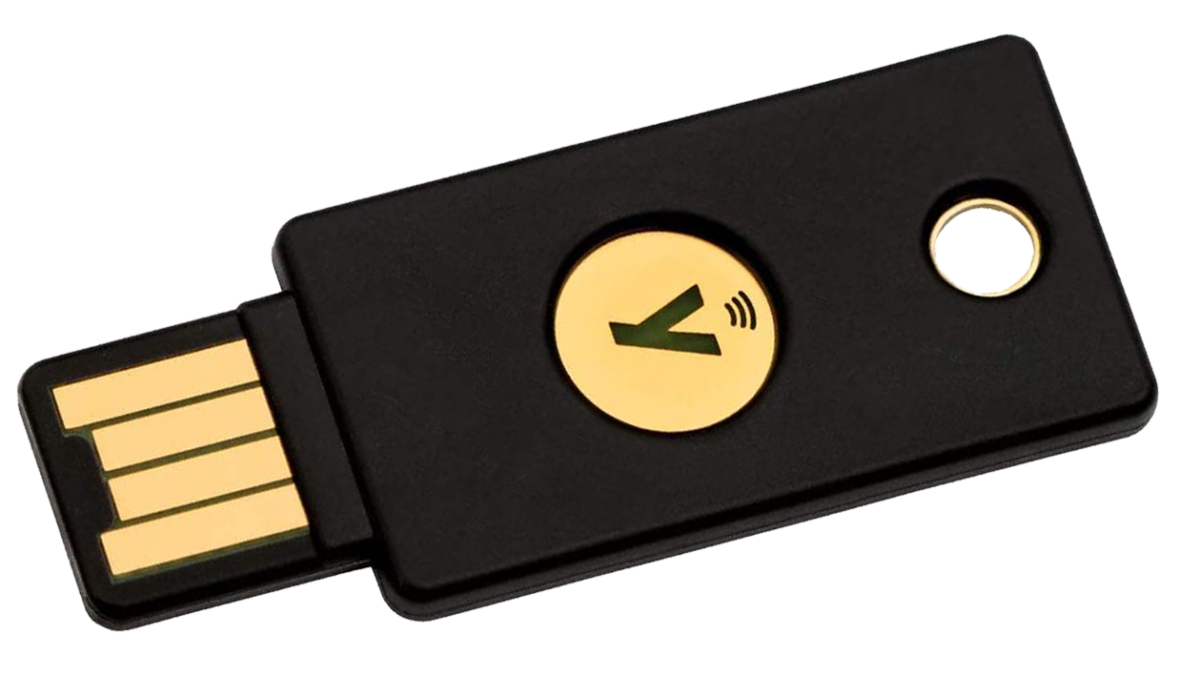
The trade-off is that sync puts your account recovery in the hands of your ecosystem password manager. That is usually a feature, not a bug: it means a normal person gets phishing resistance without buying a hardware key. If you operate in a high-risk context — journalism, activism, enterprise admin — you can instead carry a roaming authenticator such as a USB-C or NFC security key, which keeps the credentials on a separate physical device that malware on your computer cannot touch (WebAuthn roaming authenticators). Both approaches are valid; most people should start with the synced platform option and add a hardware key only where the threat model demands it.
Set up passkeys on iPhone (iOS 17 and later)
Apple ships passkeys through iCloud Keychain, and the setup is mostly passive: the next time a supported app or website offers “Sign in with passkey” or “Create a passkey,” accept and authenticate with Face ID or Touch ID. To make sure the foundation is on:
- Open Settings → [your name] → iCloud → Passwords and Keychain and confirm it is enabled. This is the vault that holds and syncs your passkeys.
- On a site that supports passkeys (Apple, Google, Microsoft, PayPal, and many banks now do), choose the passkey option at login or in account security settings.
- Authenticate with Face ID / Touch ID when prompted. The passkey is created and instantly available on every device signed into your iCloud account.
You do not need to “convert” old passwords first. Create passkeys as you log in naturally, and over a few weeks the important accounts migrate themselves.
Set up passkeys on Android (Android 9 and later)
Android uses Google Password Manager as the passkey provider. As on iPhone, enrollment is triggered by the website or app:
- Open Settings → Google → All services → Autofill & passwords and confirm “Use Google Password Manager” is on.
- When a service prompts to create a passkey, confirm and verify with your fingerprint, face, or screen lock.
- The passkey syncs to your Google Account and appears on Chrome and other Android devices automatically.
If you use a third-party password manager such as Bitwarden or 1Password, you can set it as the default passkey provider in the same Autofill settings; those apps also act as authenticators with their own cloud sync (WebAuthn password-manager authenticators).
Set up passkeys on Windows (Windows 10/11, Edge/Chrome)
Windows ties passkeys to Windows Hello and your Microsoft account:
- Open Settings → Accounts → Sign-in options → Windows Hello and set up face, fingerprint, or PIN if you have not already.
- In a supported browser, choose “Create a passkey” on a site’s security page and confirm with your Hello gesture.
- The credential is stored in the Windows Hello secure enclave and, when you opt into sync, roams with your Microsoft account to other Windows devices.
For shared or locked-down machines, a security key (USB or NFC) remains the better choice because it is not bound to a single login session.
Where passkeys still fall short
Honesty matters here. Passkeys are not a magic wand. Most sites that support them still keep a password as a fallback, so your account is only as strong as that fallback until the provider lets you delete it (WebAuthn and password fallback). Sync means a compromised ecosystem account (say, a hijacked iCloud or Google session) can expose your passkeys, so protecting that master account with its own strong second factor is essential. And cross-ecosystem portability is still imperfect: a passkey created in iCloud Keychain is easiest to use inside Apple’s world, though the FIDO standard’s “hybrid transport” lets a phone approve a login on a nearby computer (WebAuthn hybrid transport).
None of that undermines the core win. A passkey removes the single most exploited weakness in online security — the typed, stolen, reused password — and it does so in a way that is easier for a normal person than remembering 87 passwords.
The five-minute action plan
Open your three most important accounts tonight — email, bank, primary social — and check their security settings for a “passkey” or “add a passkey” button. Enable iCloud Keychain, Google Password Manager, or Windows Hello sync first so the credentials have somewhere safe to live. Within a week you will have quietly retired more bad passwords than you can count, and you will have done it without installing anything new or buying a single piece of hardware.
Image: A FIDO2 USB security token — the hardware form factor of a passkey authenticator. Source: Wikimedia Commons (CC).
Editorial note: Citation cleanup: we trimmed duplicate citation links that repeated the same source after multiple paragraphs. Every fact and quote is unchanged; the source remains cited where each claim appears.