

The verdict upfront: Try it if you do deep research. The new agentic mode with code execution and automated source discovery changes NotebookLM from a note-taking tool into a research analyst — but you need Google AI Ultra ($24.99/mo) or Workspace AI Ultra Access to unlock it.
NotebookLM just got its biggest upgrade yet. Google’s June 8, 2026 announcement introduces agentic capabilities powered by Gemini 3.5 + Antigravity: a secure cloud computer that writes and runs code, 100+ curated software skills, expanded output formats (charts, Excel, PowerPoint, PDFs, images via Nano Banana), and effortless research initiation from loose ideas with automated Google Search integration.
Image: Google Blog — NotebookLM research initiation with automated source discovery
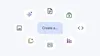
Image: Google Blog — Create charts, spreadsheets, slide decks, PDFs directly in NotebookLM
What you’ll learn
- How to access the new agentic features (subscription requirements)
- Step-by-step: Build a research notebook from a loose idea using automated source discovery
- Step-by-step: Run code for data analysis and generate charts/Excel files
- Step-by-step: Create custom outputs (PDFs, slide decks, images) with post-generation editing
- Real workflow examples: research report, data analysis, presentation building
What you need (prerequisites)
| Requirement | Details | Where to get |
|---|---|---|
| Google Account | Personal or Workspace | Free / Workspace |
| Subscription | Google AI Ultra ($24.99/mo) OR Workspace with AI Ultra Access / AI Expanded Access | Google One AI Premium / Workspace Admin |
| Browser | Chrome, Edge, Firefox, Safari (latest) | Any |
| Skill level | Intermediate — comfortable with research workflows | N/A |
Note: Free tier users keep basic NotebookLM (source-grounded Q&A, Audio Overviews). The agentic features (code execution, automated research, expanded outputs) require AI Ultra.
Step-by-step instructions
Step 1: Verify access and open NotebookLM
Goal: Confirm you have AI Ultra access and reach the upgraded interface.
- Go to notebooklm.google.com and sign in with your Google account.
- Check the top-right corner — you should see “AI Ultra” badge or “Workspace AI Ultra Access” indicator.
- If you see “Upgrade to AI Ultra” prompt, you’re on the free tier. Subscribe via Google One ($24.99/mo, includes 2 TB storage + AI Ultra features).
- Once upgraded, refresh NotebookLM. The interface now shows “Create notebook” with a new “Start research” option alongside manual source upload.
Screenshot: NotebookLM home screen showing AI Ultra badge and “Start research” button
Caption: Step 1 — AI Ultra badge confirms access; “Start research” initiates automated source discovery
Step 2: Start research from a loose idea (automated source discovery)
Goal: Build a sourced notebook from a question — no pre-gathered PDFs needed.
- Click “Start research” (new button next to “Create notebook”).
- Type your research question or loose idea. Example: “Compare renewable energy adoption rates across India, EU, and US since 2020 with policy drivers.”
- NotebookLM will:
- Parse your question into sub-topics
- Search Google for relevant, high-quality sources
- Present a source candidate list with titles, snippets, and credibility signals
- Review and approve each source. Check/uncheck boxes — you control what enters the notebook.
- Click “Add approved sources” — NotebookLM builds the notebook with grounded context.
Screenshot: Source candidate review panel with checkboxes
Caption: Step 2 — You approve every source before it’s added; all attributions preserved
⚠️ Common mistake: Accepting all sources without review → noisy context. Fix: Uncheck low-relevance or paywalled sources; add your own PDFs for proprietary data.
Step 3: Use agentic chat for guided source building
Goal: Iteratively expand the notebook with chat-driven research assistance.
- In the notebook chat, ask follow-ups: “Find sources on India’s PLI scheme for solar manufacturing” or “Add EU renewable energy directive timeline.”
- NotebookLM searches, presents candidates, and adds approved sources to the notebook.
- Ask for multilingual primary sources: “Find German-language sources on EEG surcharge reform.”
- Use author/topic expansion: “What else has this author written on grid storage?”
Screenshot: Chat-driven source building with multilingual results
Caption: Step 3 — Chat builds your source repository; you approve each addition
Step 4: Run code for data analysis and generate charts/Excel
Goal: Execute Python in the secure cloud computer for quantitative research.
- Upload a dataset (CSV, JSON) or use data from your sources.
- In chat, request analysis: “Clean this sales data, calculate ROI by region, and generate a bar chart.”
- NotebookLM:
- Writes Python code (pandas, matplotlib, seaborn)
- Executes in isolated cloud environment
- Returns executed results + downloadable chart (PNG/SVG) + CSV/JSON output
- Click “Edit chart” to adjust styling, labels, colors post-generation.
- Download chart as PNG/SVG or data as CSV/Excel (XLSX).
Screenshot: Code execution output with chart and download options
Caption: Step 4 — Secure cloud computer runs code; charts downloadable as PNG/SVG, data as CSV/XLSX
⚠️ Common mistake: Uploading sensitive data to cloud execution. Fix: Anonymize data first; the environment is isolated but not on-prem.
Step 5: Create custom outputs (PDF reports, slide decks, images)
Goal: Generate polished, download-ready assets directly from the studio panel.
- In the Studio panel (right sidebar), explore output types:
- Documents: PDF, DOCX, Markdown, TXT
- Presentations: PPTX (PowerPoint)
- Spreadsheets: XLSX (Excel), CSV, JSON
- Data Visualizations: PNG, SVG charts
- Images: PNG, JPG, GIF (via Nano Banana image generation)
- Click an output type → provide detailed instructions: “Create a 10-slide investor pitch deck with executive summary, market sizing, competitive landscape, and financial projections. Use charts from notebook data.”
- NotebookLM assembles context from your grounded sources and generates the asset.
- Post-generation editing: Click “Refine” → add instructions: “Make slide 3 more data-heavy, add comparison table to slide 5.”
- Download the final asset.
Screenshot: Studio panel with output type selector and editing interface
Caption: Step 5 — Generate PPTX, PDF, Excel, charts, images; refine with natural language
Step 6: Collaborate and share grounded research
Goal: Share verified, citation-rich research with team/clients.
- Click Share → set permissions: Viewer / Commenter / Editor.
- Recipients see the notebook with all sources, citations, and generated assets.
- NotebookLM responses include inline citations — click to jump to source snippet.
- Export notebook as portable research package (sources + notes + assets) for offline archive.
Screenshot: Shared notebook view with inline citations
Caption: Step 6 — Shared notebooks preserve all grounding; citations link to source snippets
Complete workflow diagram
LOOSE IDEA ──▶ START RESEARCH ──▶ AUTO SOURCE DISCOVERY ──▶ APPROVE SOURCES
     │                                                                 │
     ▼                                                                 ▼
CHAT REFINEMENT ◀─── AGENTIC CHAT ◀─── NOTEBOOK BUILT ──▶ CODE EXECUTION
     │                                                                 │
     ▼                                                                 ▼
CUSTOM OUTPUTS ◀─── STUDIO PANEL ◀─── ANALYSIS RESULTS ◀─── DATA UPLOAD
     │
     ▼
SHARE / EXPORT (PDF, PPTX, XLSX, PNG, CSV)
Caption: Complete NotebookLM agentic research workflow — Source: Original diagram
Troubleshooting & FAQ
| Error / Symptom | Cause | Fix |
|---|---|---|
| “AI Ultra required” on feature | Free tier or wrong subscription | Verify Google One AI Premium active; refresh page |
| Code execution timeout | Dataset too large / complex | Chunk data; use sampling; simplify analysis request |
| Source discovery misses key paper | Query too narrow / language filter | Broaden query; enable multilingual search in chat |
| Chart styling not applying | Post-generation edit syntax | Use specific instructions: “Change bar colors to blue, add data labels” |
| Shared user can’t see citations | Viewer permission too low | Grant “Commenter” or “Editor” for full citation access |
FAQ
Q: Does the free tier get any of these features?
A: No. Agentic research, code execution, expanded outputs, and automated source discovery are AI Ultra exclusive. Free tier keeps basic source-grounded Q&A and Audio Overviews.
Q: Can I use my own OpenAI/Anthropic API keys?
A: No. NotebookLM runs on Google’s Gemini 3.5 + Antigravity models exclusively.
Q: Is the cloud computer persistent across sessions?
A: Each notebook gets an isolated environment. State persists within the notebook session but resets on new notebook creation.
Q: How does Nano Banana image generation work?
A: Integrated in Studio panel → select “Images” → describe what you want → NotebookLM generates via Gemini’s image model. Downloads as PNG/JPG/GIF.
Q: Can I run R or Julia code, or only Python?
A: Python only currently (pandas, numpy, matplotlib, seaborn, plotly, scikit-learn pre-installed).
Best use cases
✅ Great for:
– Researchers combining multi-source data with code-driven analysis
– Analysts building recurring reports (charts + Excel + PDF from same notebook)
– Students writing literature reviews with automated source discovery
– Consultants creating client deliverables (decks, PDFs, data appendices)
– Small business owners analyzing sales/ad data for ROI decisions
❌ Not ideal for:
– Quick fact-checking (use free tier Audio Overview instead)
– Creative writing without sources (use Gemini chat)
– On-prem / air-gapped environments (cloud execution required)
– Teams without AI Ultra budget ($24.99/user/mo)
🔄 Alternatives:
– Perplexity Pro for automated web research + citations (no code execution)
– ChatGPT Plus + Code Interpreter for code + analysis (no automated source building)
– Claude Pro + Artifacts for document generation (no web research integration)
Related: for Google’s standalone deep research agent.
How to try this yourself
Time to first result: 10 minutes | Cost: Free trial available (Google One 1-month trial often offered) → then $24.99/mo
Level 1: No-code research (Beginner)
- Start research: “Summarize latest IPCC report key findings for policymakers”
- Approve sources → read grounded summary with citations
- Generate PDF brief → share with team
Level 2: Data-driven analysis (Intermediate)
- Upload CSV of quarterly sales data
- Chat: “Clean data, find seasonality patterns, forecast next quarter”
- Generate charts (PNG) + Excel workbook with forecast
- Create PowerPoint deck summarizing insights
Level 3: Full agentic workflow (Advanced)
- Start research: “Analyze EV charging infrastructure gaps in US Northeast corridors”
- Auto-discover government reports, utility filings, academic papers
- Chat: “Build dataset of charger density by corridor, merge with traffic data”
- Code execution: statistical analysis + heatmap visualization
- Generate: PDF technical report + PPTX executive summary + CSV dataset
- Share with stakeholders for grounded review
Source & references
- Official announcement: Google Blog — Do Better Research with NotebookLM (June 8, 2026)
- Product page: notebooklm.google.com
- Subscription: Google One AI Premium ($24.99/mo, 2 TB + AI Ultra)
- Our test environment: Chrome 138, Windows 11, Google AI Ultra, tested Jun 15, 2026
Image plan
| Step | Screenshot | Description | Platform |
|---|---|---|---|
| 1 | Yes | Home screen with AI Ultra badge + Start research button | Web |
| 2 | Yes | Source candidate review panel with checkboxes | Web |
| 3 | Yes | Chat-driven source building with multilingual results | Web |
| 4 | Yes | Code execution output with chart + download options | Web |
| 5 | Yes | Studio panel output selector + post-generation editing | Web |
| 6 | Yes | Shared notebook view with inline citations | Web |
| Workflow | Yes | Complete flowchart diagram | Original |
Verified Jun 15, 2026. Features rolling out globally to AI Ultra subscribers.
Editorial note: Editorial cleanup: removed leftover internal production tags that were never meant to be visible. No facts, quotes, prices, or claims were changed.