
If you build workflows in n8n, you have probably dragged the native AI Agent node onto the canvas, wired in a model call, and called it done. That pattern works for single-turn tasks. It breaks the moment you need memory that survives across runs, real tool execution instead of mocked responses, or an agent that handles longer tasks without timing out. Building that scaffolding yourself is the slow part. Amazon Bedrock AgentCore harness is now generally available, and a new open-source community node, @aws/n8n-nodes-agentcore, plugs it directly into n8n’s visual editor. You get production agents with persistent memory, real tools, and multi-model support without writing agent infrastructure.
The node sits on top of Amazon Bedrock AgentCore, which AWS describes as a platform to build, connect, and optimize agents at scale with any framework or model. AgentCore harness specifically handles the orchestration loop, tool calls, context window management, state recovery, and session isolation. Under the hood it runs on Strands Agents, the open source agent framework from AWS. The community node, @aws/n8n-nodes-agentcore, exposes that harness inside n8n, so you can configure it through the same credential and parameter interface you already use for Lambda and S3 nodes.
What you need before starting
Your environment needs three things. First, an n8n instance, either self-hosted or on n8n Cloud. The node works with both. Second, the community node installed. Because it is a verified community node, you can add it directly from the nodes panel by searching for “Amazon Bedrock AgentCore,” or install it manually from Settings, Community Nodes, Install by entering @aws/n8n-nodes-agentcore. This guide uses node version 0.3. Third, an AWS account with access to AgentCore harness in a supported Region, plus AWS credentials for the caller and a separate IAM execution role that the harness assumes at runtime.
AWS maintains least-privilege reference policies in the AgentCore harness security documentation, and the node README maps each feature to the exact permissions to add. Use temporary credentials from AWS IAM Identity Center or AWS Security Token Service whenever possible, and never commit credentials to source control.
Step 1: Configure the AWS credential
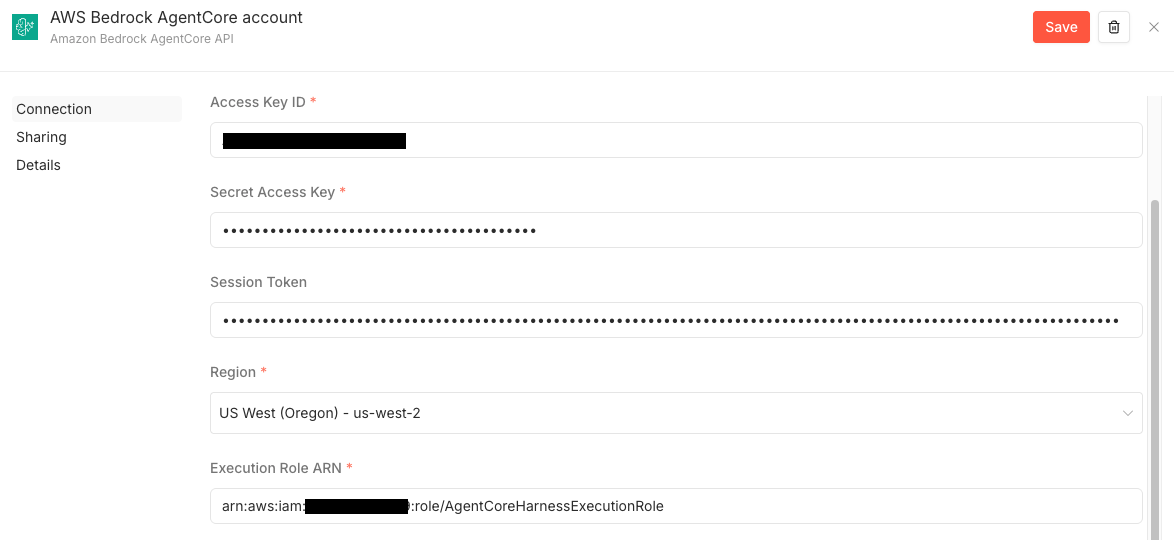
Open n8n, go to Credentials, and choose New. Search for and select Amazon Bedrock AgentCore API. Enter your Access Key ID, Secret Access Key, and a Session Token if you use temporary credentials. Select your Region, then paste the Execution Role ARN that the harness will assume at runtime. Choose Test to confirm the connection, then save.
Source: Run production AI agents in n8n with Amazon Bedrock AgentCore harness
The node uses the same AWS credential pattern as n8n’s existing Lambda and S3 nodes, so the setup should feel familiar if you already automate AWS services n8n AWS Lambda node.
Step 2: Build an agent that remembers conversations
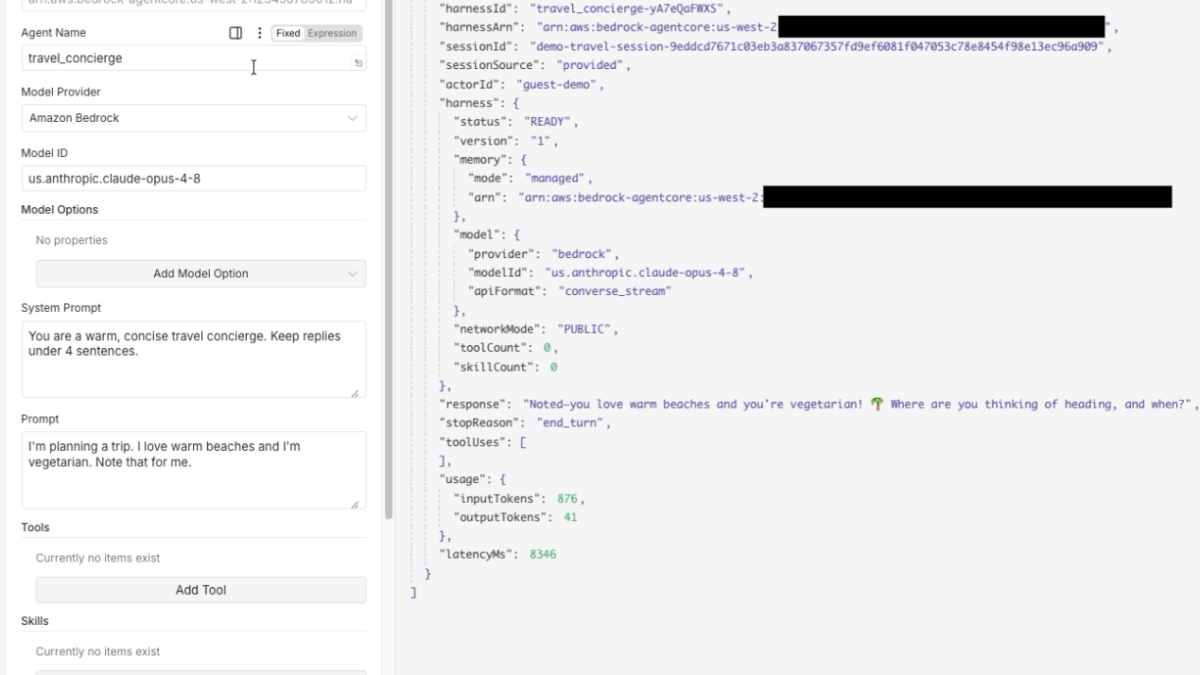
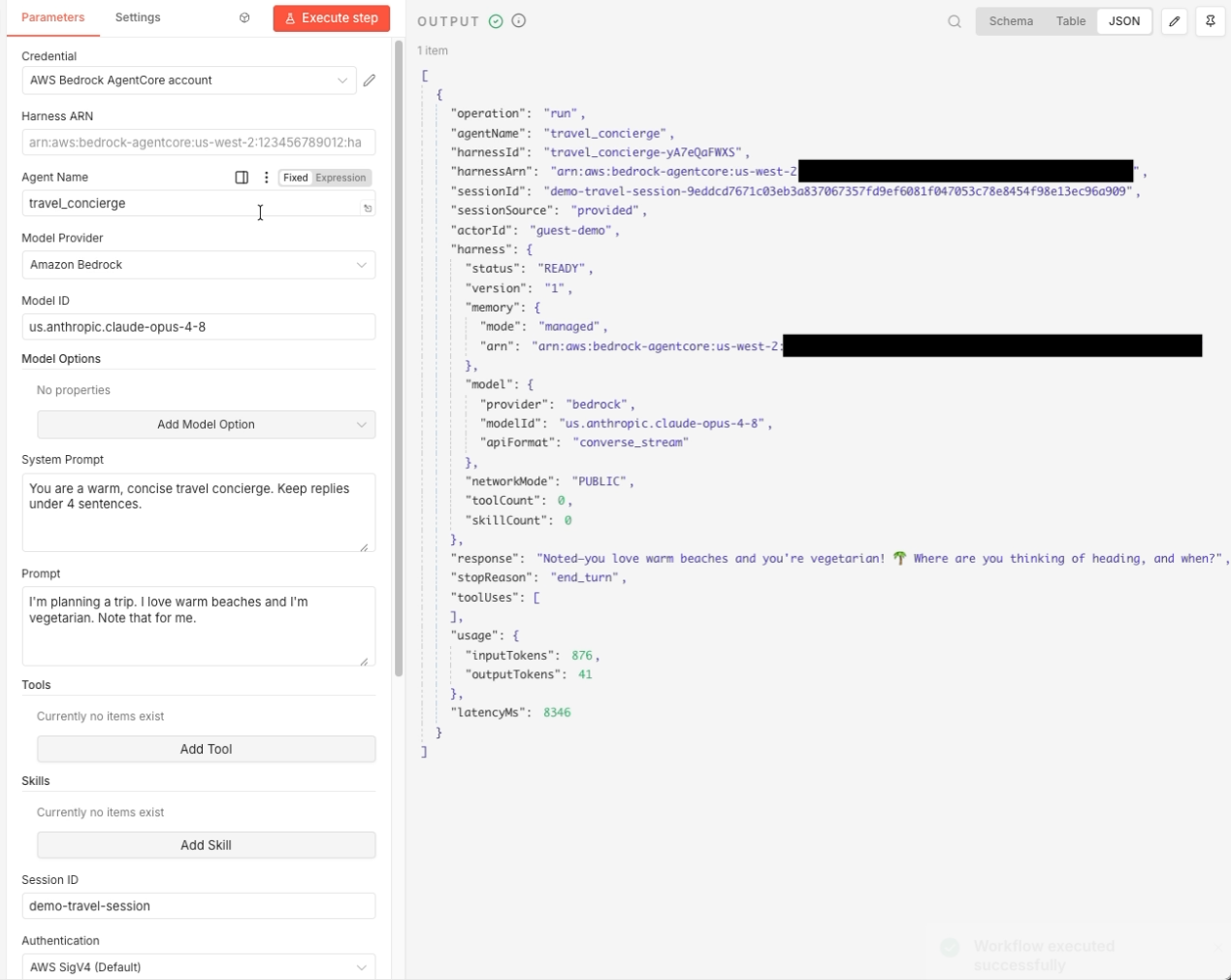
Add a manual trigger to a new workflow, then add the Amazon Bedrock AgentCore node. Leave Harness ARN blank so the node creates a new agent on the first run and reuses it later. Enter an Agent Name such as travel_concierge. Set Model Provider to Amazon Bedrock and enter a Model ID, such as a Claude model. Write a System Prompt, for example: “You are a warm, concise travel concierge.” Enter a Session ID, such as demo-travel-session, and a first-turn Prompt like “I love warm beaches and I’m vegetarian. Note that for me.”
Run the node. The first run takes about 30 to 60 seconds while AWS provisions the agent and its managed memory store Amazon Bedrock AgentCore harness. The output includes the agent’s response, token usage, and a harness summary confirming the memory store.
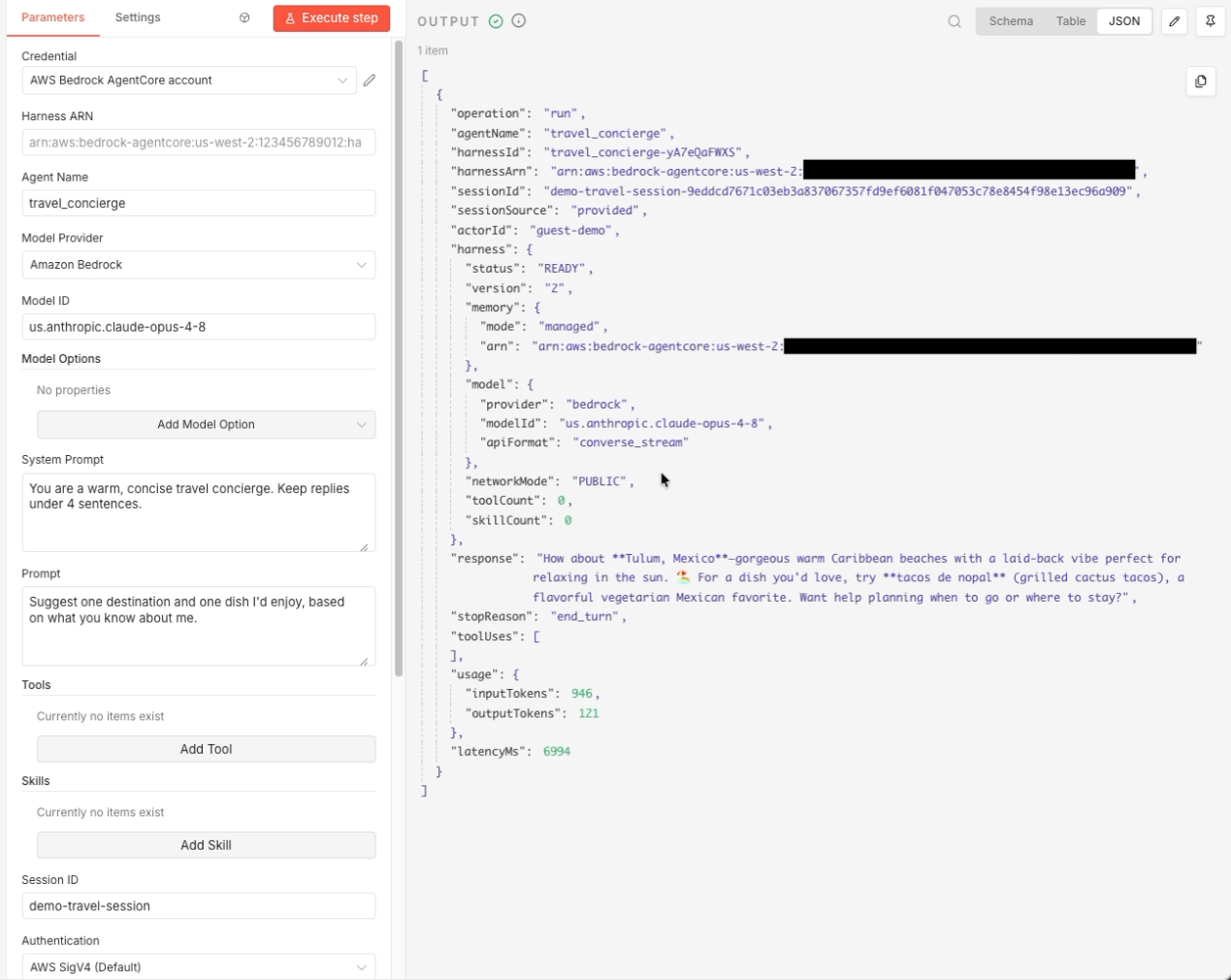
Change only the Prompt to “Suggest one destination and one dish I’d enjoy, based on what you know about me,” keep the same Session ID, and run again. The agent recalls the preferences from turn 1 because the conversation persists through the session ID. The output field sessionSource reads provided when you supply a session ID, and the input token count rises on turn 2 because the node loads the prior conversation before the agent reasons. If you leave the session ID blank, each run starts a new conversation.
Source: Run production AI agents in n8n with Amazon Bedrock AgentCore harness
Step 3: Scope memory per user with an actor ID
When one agent serves many people, use an Actor ID to keep each person’s memory separate. Memory is scoped by actor and session, so different actors get isolated histories from the same agent. The hierarchy is simple: the agent holds shared configuration, the Actor ID isolates one user’s memory from another’s, and the Session ID isolates individual conversations within an actor.
Configure an agent such as team_assistant with managed memory. Under Additional Options, set Actor ID to a per-user value like user-alice, and set a Session ID for that user. Run a first turn such as “Remember my project is codenamed Aurora.” Then change the prompt to “What’s my project codename?” and run again with the same actor and session. The agent returns the stored value. A different actor ID with the same session ID still gets its own separate memory.
Step 4: Add a tool and give the agent skills
Agents become far more capable when they can use tools. In this step, give the agent a code interpreter that runs code in a sandboxed environment. Use an agent such as data_analyst with a Claude model. In the System Prompt, instruct the agent to write and run code to answer, then report the result. Turn on Add Tools, then under Tools choose Add Tool and set Type to AgentCore Code Interpreter. Enter a prompt that requires computation, such as “Generate 500 random exam scores between 0 and 100, then report the mean, median, and standard deviation.” The agent writes and runs code in the sandbox and returns computed results rather than estimating them. The harness summary shows one tool configured. You add other tools the same way, including a cloud browser, AgentCore Gateway with optional OAuth outbound authentication, and remote Model Context Protocol servers.
Skills are bundles of instructions and scripts that give an agent domain knowledge on demand. Load them from the AWS curated catalog, a Git repository, Amazon S3, or a filesystem path, and the harness loads them only when the task calls for them. For this walkthrough, use an agent named aws_architect with a Claude model. Turn on Add Skills, then under Skills choose Add Skill and set Source. For the curated catalog, choose AWS Skills and enter a glob pattern such as core-skills/*. You can add a Git source that points to a public repository. Enter a prompt that benefits from the skill, such as “Outline a serverless image-upload pipeline on AWS.” The agent applies the loaded skills to produce guidance, and the harness summary shows the number of skills configured.
Step 5: Run the agent privately in your VPC
For agents that need private network access, run the harness in your VPC. You set the network configuration on the credential, so every agent that credential provisions runs privately. Edit your Amazon Bedrock AgentCore API credential. Set Network Mode to VPC. Enter your VPC Subnet IDs and VPC Security Group IDs, then save.
Your subnets do not need internet access. The harness pulls its managed container image from a private Amazon ECR repository in the same Region, so you need VPC endpoints for Amazon ECR and Amazon S3 rather than a NAT gateway. Refer to the AgentCore harness network configuration documentation for the required endpoints and the execution role permissions.
In a workflow, use an agent such as private_vpc_agent with the VPC-enabled credential. Enter a prompt and run the node. The harness summary shows the network mode is VPC.
Source: Run production AI agents in n8n with Amazon Bedrock AgentCore harness
Where to go next
The node already supports more of the Amazon Bedrock AgentCore harness feature set. You can switch model providers mid-session between Amazon Bedrock, OpenAI, Google Gemini, and LiteLLM-supported providers without losing context. You can add a cloud browser, AgentCore Gateway with optional OAuth outbound authentication, and remote MCP servers alongside the code interpreter. Inline functions let the agent call back into your n8n workflow for a human-in-the-loop step, then return the result to the agent. Custom containers let you bring your own Linux or arm64 container image so the agent runs with your own dependencies. You can mount managed session storage, or mount Amazon EFS or Amazon S3 for data that outlives a session. OAuth-authenticated invocation lets you invoke agents protected by an inbound JSON Web Token authorizer. Versions and endpoints make every configuration change immutable, and named endpoints let you pin staging and production to specific versions. The examples folder in the GitHub repository includes importable workflows for many of these, and the examples/templates folder has fuller workflows that show the agent working alongside other n8n nodes in complete, importable automations.
Clean up
Each agent you create is a harness resource in your AWS account, and it can provision a managed memory store. To avoid ongoing charges, delete the agents you no longer need. List your harnesses with the AWS CLI or the Amazon Bedrock AgentCore console. Run aws bedrock-agentcore-control list-harnesses --region us-west-2, then delete the ones you created for this guide with aws bedrock-agentcore-control delete-harness --harness-id <harness-id> --region us-west-2. If you enabled a VPC, remove any interface VPC endpoints you created, because interface endpoints incur charges while they exist.
For pricing details, refer to the AgentCore documentation.
If you want to see similar applied AI infrastructure coverage, read How TReNDS automates root-cause analysis with Amazon Bedrock and Use GPT-5.6 Sol, Terra, and Luna on Amazon Bedrock.
Editorial note: Citation cleanup: we trimmed duplicate citation links that repeated the same source after multiple paragraphs. Every fact and quote is unchanged; the source remains cited where each claim appears.